Once a week, automatically, every family gets the lesson their child heard: the story, the memory verse, a few questions for the dinner table, and the printable take-home sheet. You set it up once, and it follows your lesson schedule from then on.
It’s the take-home sheet, delivered. Families who never pick up a sheet or log in to anything still get the lesson in their inbox.
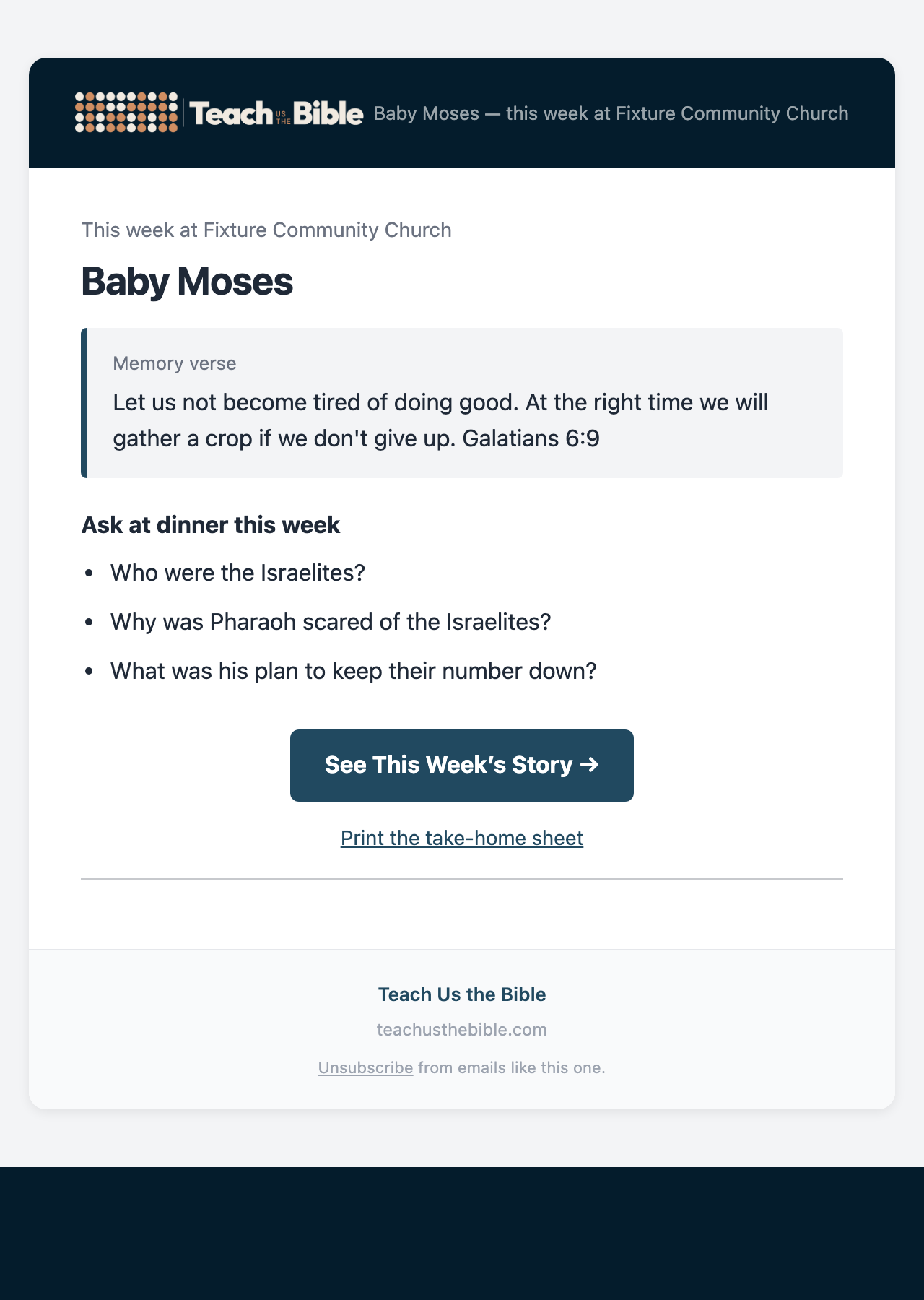
What Parents Receive
- Your line at the top, if you’ve written one (optional)
- The lesson title, and the lesson’s take-home point where it has one
- The memory verse
- Up to three questions under Ask at dinner this week
- A See This Week’s Story button, which opens the lesson’s parent page (no account needed)
- A Print the take-home sheet link, for the Family Follow-Along sheet
The subject line is the lesson and your ministry’s name, such as Baby Moses — this week at Grace Church. It’s sent under your ministry’s name, or whatever you put in From. When a parent hits reply, it goes to your ministry, not to Teach Us the Bible: to the service’s reply-to address if you’ve set one in Ministry Settings, otherwise to your ministry administrator.
Turning It On
The email is off until you switch on Send it automatically. Nothing reaches your parents until you do. Before you switch it on, check two things:
- Your lesson schedule has dates on it. Each email is about the lesson scheduled for that week, so a week with nothing scheduled sends nothing. See Lesson Schedule.
- You have parents to send to, either on your parent list or on one of your Planning Center lists.
Who Gets It
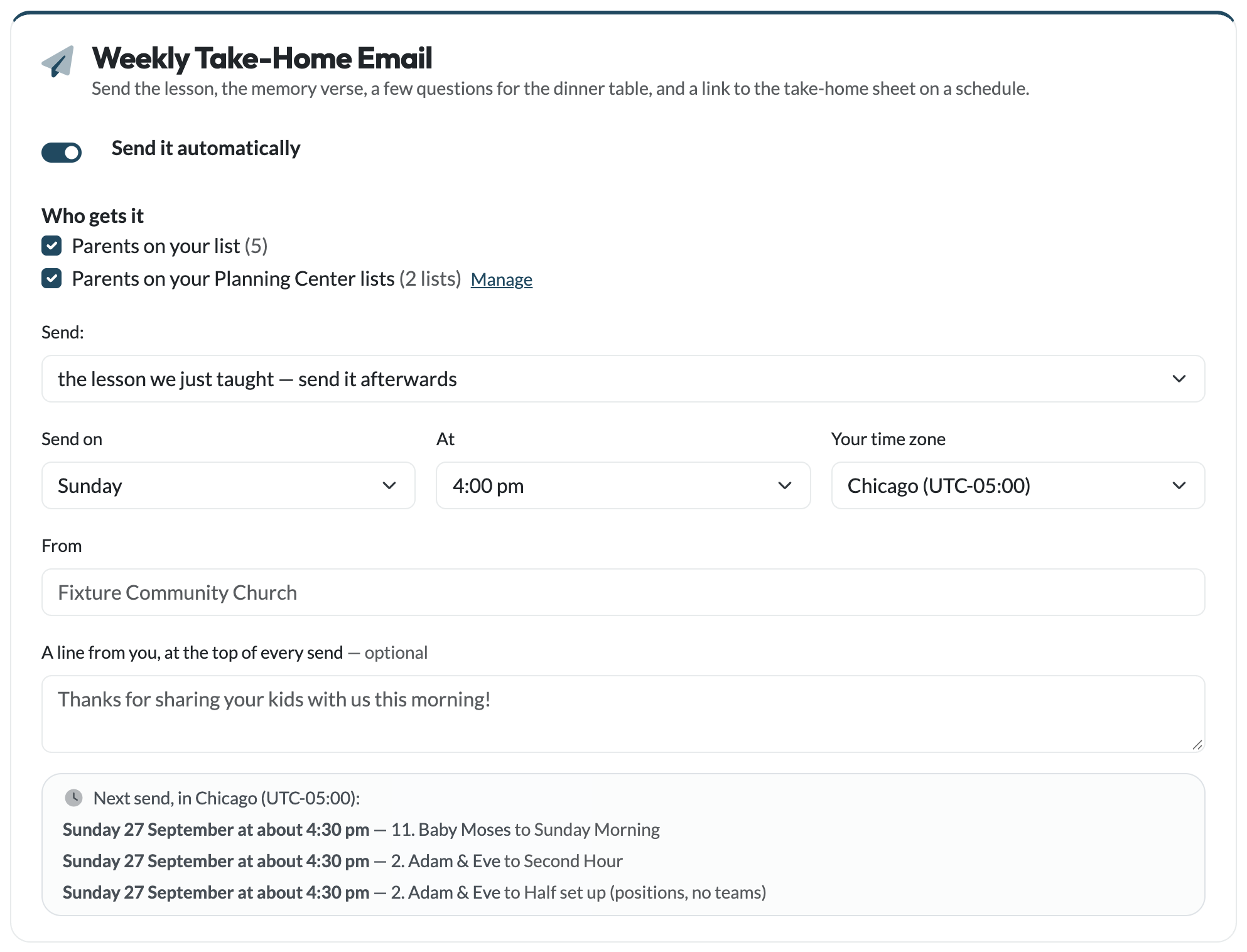
Under Who gets it, tick where the email should go. You can tick one or both:
- Parents on your list: everyone on your parent list, whether you added them or they signed up.
- Parents on your Planning Center lists: the lists you’ve added under Parents from Planning Center. Shown if your ministry is connected to Planning Center.
With both unticked, the card warns Nobody is selected and the email goes to no one. It won’t fall back to everyone.
One email per family, per lesson
An address that appears in more than one place gets one email: a parent on your list who’s also on a Planning Center list, two lists pointed at the same service, or two parents sharing one inbox. A family whose address is on lists for two different services gets both lessons, because those are two different emails.
More than one service
Each service gets its own email about its own lesson. Parents get the lesson for the service set against them on your parent list, which every parent now needs; anyone added before that, still showing Choose…, gets your first service’s lesson until you pick one. Every family gets one email about one lesson, never two on the same evening.
 Using Your Planning Center Lists
The lists themselves are set up once, under Parents from Planning Center on the same page, because Email Parents uses them too. Here you only choose whether this email sends to them: tick Parents on your Planning Center lists, and Manage beside it takes you to the lists. Each family gets the lesson for the service their list is set to, read fresh from Planning Center as the email goes out.
Unticking it stops this email using them but keeps the lists set up, so ticking it again brings back the same families. Email Parents can still use them either way.
If a list couldn’t be read
If Planning Center doesn’t hand back the whole list, that service’s email is held back for the week rather than sent to part of your families, and the list shows a red could not be read badge (hover over it for the reason). The chip at the top of the page turns copper too. The usual cause is an expired connection: reconnect Planning Center in Ministry Settings and the next week’s send reads it normally.

When It Sends
Before or after the lesson
The Send setting decides which lesson each email is about:
- The lesson we just taught — send it afterwards. A recap, so families can pick up the conversation at home. This is the default.
- The lesson coming up — send it beforehand. A preview, so families can read the story together before Sunday.
Then choose the day and hour in Send on and At. A Sunday service with afterwards and Sunday, 4:00 pm sends that afternoon. With Monday, 9:00 am, it sends the next morning. Emails arrive about half an hour after the time you pick, so a 4:00 pm email lands around 4:30.
Your time zone
Pick your city in Your time zone so “4:00 pm” means 4:00 pm where your families are. Every time zone is listed, grouped by UTC offset, and if your device’s time zone differs from the one chosen, the card offers it with a Use this link. Daylight saving is handled for you. Until you choose, the card warns that it will send on UTC.
Next send
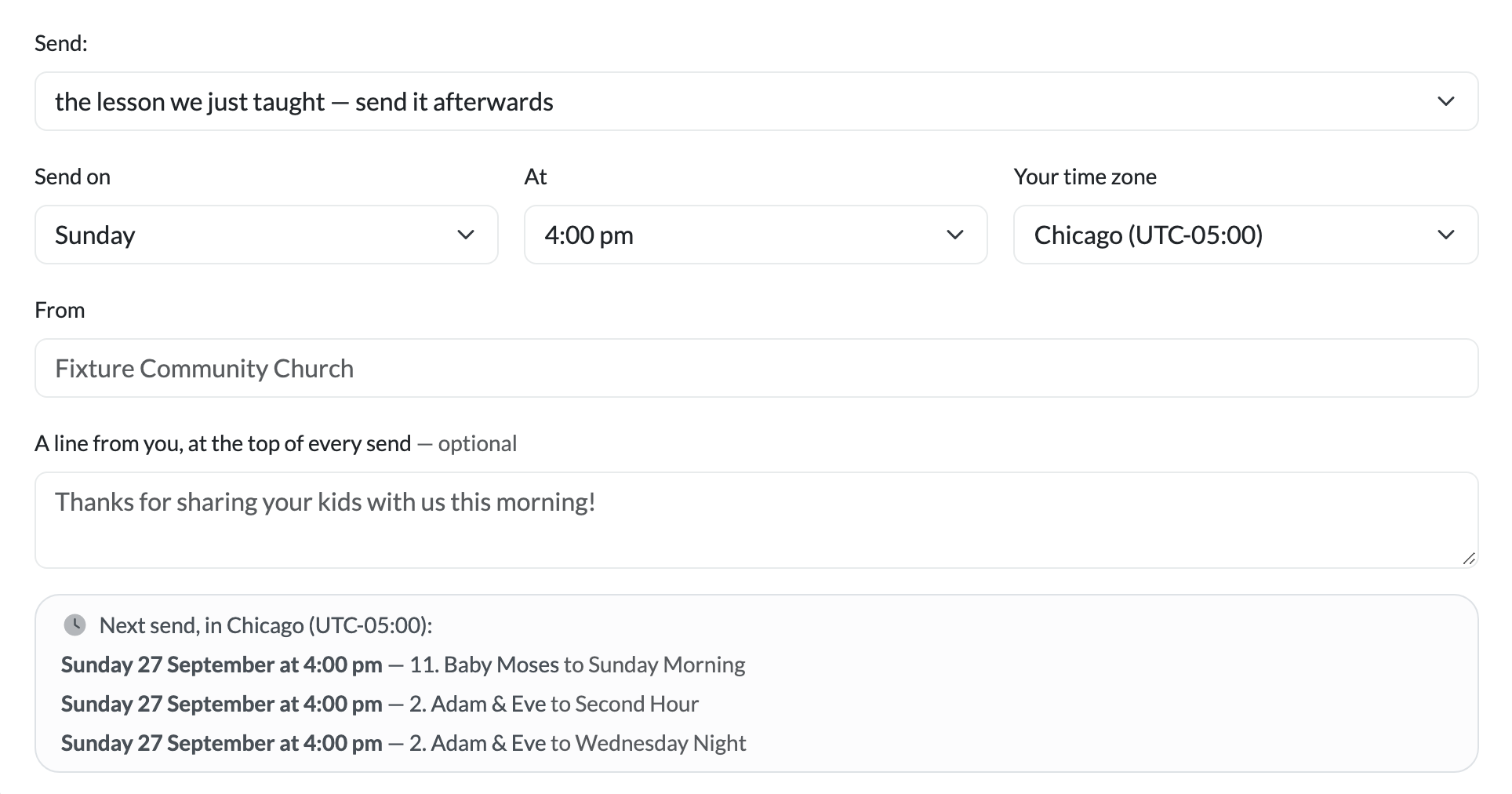
The box at the foot of the card shows exactly what goes out next: the day and the time it should arrive in your time zone, the lesson, and (if you have several) which service. It updates as you change the settings, so it’s the quickest way to check the email is pointed at the schedule you meant. If it says Nothing is scheduled to send yet, add dates to your lesson schedule.
Parents who join mid-week
A parent added after that week’s email has gone out still gets it, within the hour, until the next lesson comes round. Nobody gets the same week’s email twice.
Making It Yours
- From is the name parents see in their inbox. It defaults to your ministry’s name.
- A line from you, at the top of every send is optional: a thank-you, a welcome, or a reminder that holds all term. It appears above the lesson in every email.
When a Parent Unsubscribes
Every take-home email ends with an Unsubscribe link that’s unique to that parent. It asks them to confirm with a button, then stops the weekly email for them. Notes you send from Email Parents are a separate choice, so a parent can keep one and drop the other.
On your parent list they’re marked No weekly email. Only the parent can turn it back on, from the same link; pasting them into your list again doesn’t resubscribe them. Addresses that bounce, or whose owners report your email as spam, stop being emailed on their own. More in Parents Are Always in Control.
Troubleshooting
I switched it on and nothing went out
Check Next send on the card. Most often it’s waiting for the first lesson taught after you switched it on (see Turning It On), or the week has no lesson on your schedule.
One service got the email and another didn’t
Look for a could not be read badge on that service’s Planning Center list: when a list can’t be read, that service is held back for the week. Also check that service has a lesson scheduled.
It stopped sending altogether
The email only goes out while your ministry’s subscription is active. Check Subscription.
It arrived at the wrong time
Check Your time zone. If it was never set, the email follows UTC.
A family got the wrong service’s lesson
Set their Service on your parent list. If they come from a Planning Center list, check which service that list is pointed at.
On this page
Supporting parents
- Parent Engagement
- Weekly Take-Home Email
- Email Parents
- Parent Portal
- Take-Home Sheet
Need help?
support@teachusthebible.com