Parent Engagement is where you keep your list of parents and decide what reaches them each week. Most parents will never log in to anything. This page is built to reach them anyway.
The page is split in two, and so is this guide: who your parents are at the top, what parents get underneath.
At a Glance
The row of chips under the title answers “is this working?” without any scrolling. Each one jumps to its section of the page.
- A solid chip is something that’s set up, such as your parent count or Take-home email on.
- A copper chip wants your attention, for example a Planning Center list that couldn’t be read.
- A dashed chip leads to something you haven’t set up yet.

Who Your Parents Are
There are three ways a parent ends up somewhere you can reach them. You can use any mix of them.
Your Parent List
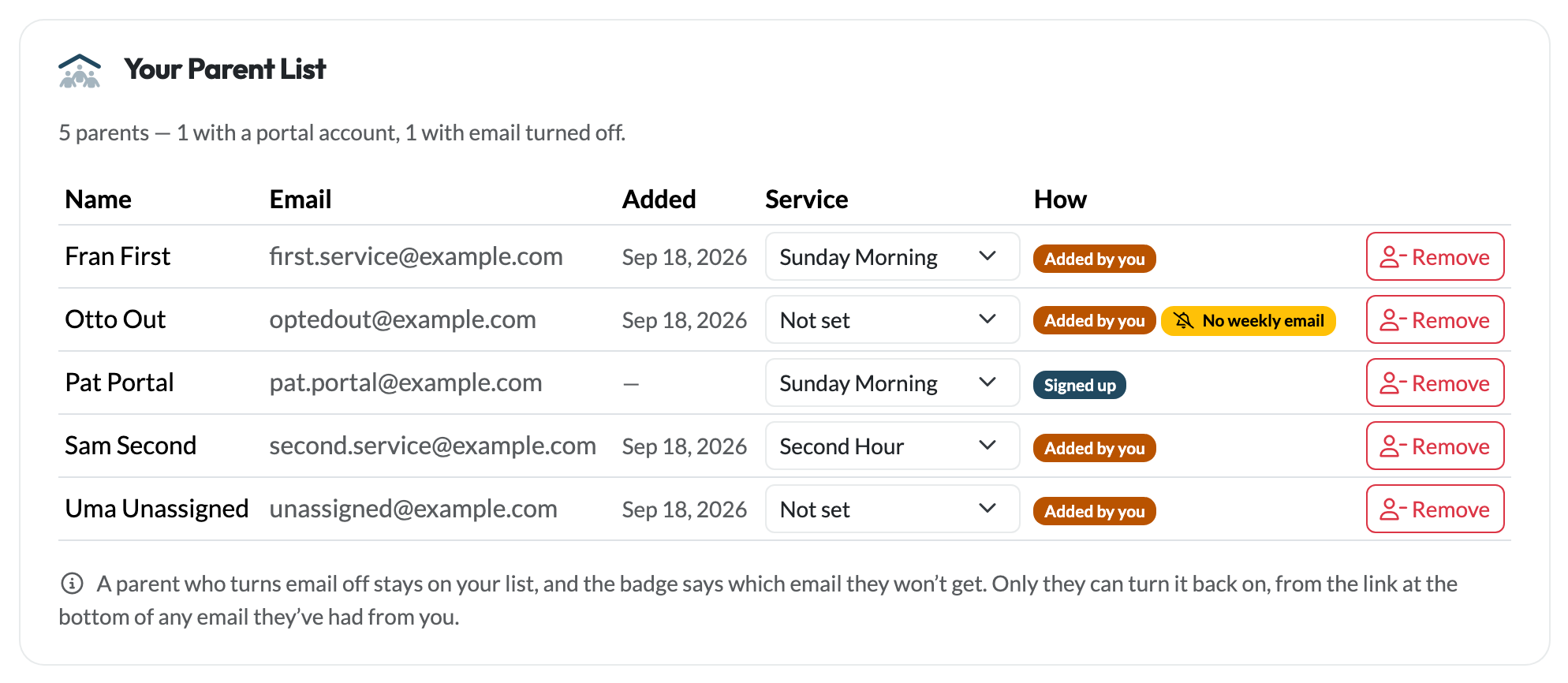
Everyone you can email from here, in one table: parents you’ve added yourself, and parents who signed up through your invite link. The How column tells them apart: Added by you or Signed up. The line above the table counts how many have a portal account and how many have turned some email off.
A parent doesn’t need an account to be on this list. Most won’t have one, and they still get everything the list is used for.
Services
If your ministry runs more than one service, each parent has a Service dropdown. It decides which service’s lesson they’re sent, and it saves as soon as you change it. Every parent needs one: pasting parents asks which service they’re in, and parents who sign up choose theirs. Anyone added before that shows a red Choose… until you pick one; until then they get your first service’s lesson.
Parents who have turned email off
They stay on your list, with a badge saying what they won’t get:
- No weekly email: no weekly take-home email, but your one-off messages still reach them.
- No ministry notes: no messages from Email Parents, but the weekly email carries on.
- Unsubscribed: nothing from your ministry at all. Their row is greyed out.
Only the parent can turn email back on, from the link at the bottom of any email they’ve had from you. See Parents Are Always in Control.
Removing someone
Click Remove on their row. For a parent you added, that takes them off the list. For a parent who signed up, it also means they can no longer log in. Removed someone by mistake? Paste their address in again (below) and they’re back.
Adding Parents by Email
You probably already have a list of families in a spreadsheet, a check-in system, or last year’s sign-up sheet. You can paste it straight in.
Paste one parent per line
As email, first name, last name. Only the email is required. If you’re copying from a spreadsheet, a header row is fine: it’s skipped.
Choose their service
If you run more than one service, pick the one these families belong to. Paste each service’s families separately, or fix individual parents afterwards in the list.
Click Add to Parent List
You’ll see what happened to every line: Added, Updated, or Failed with the reason, such as an address with a typo in it.
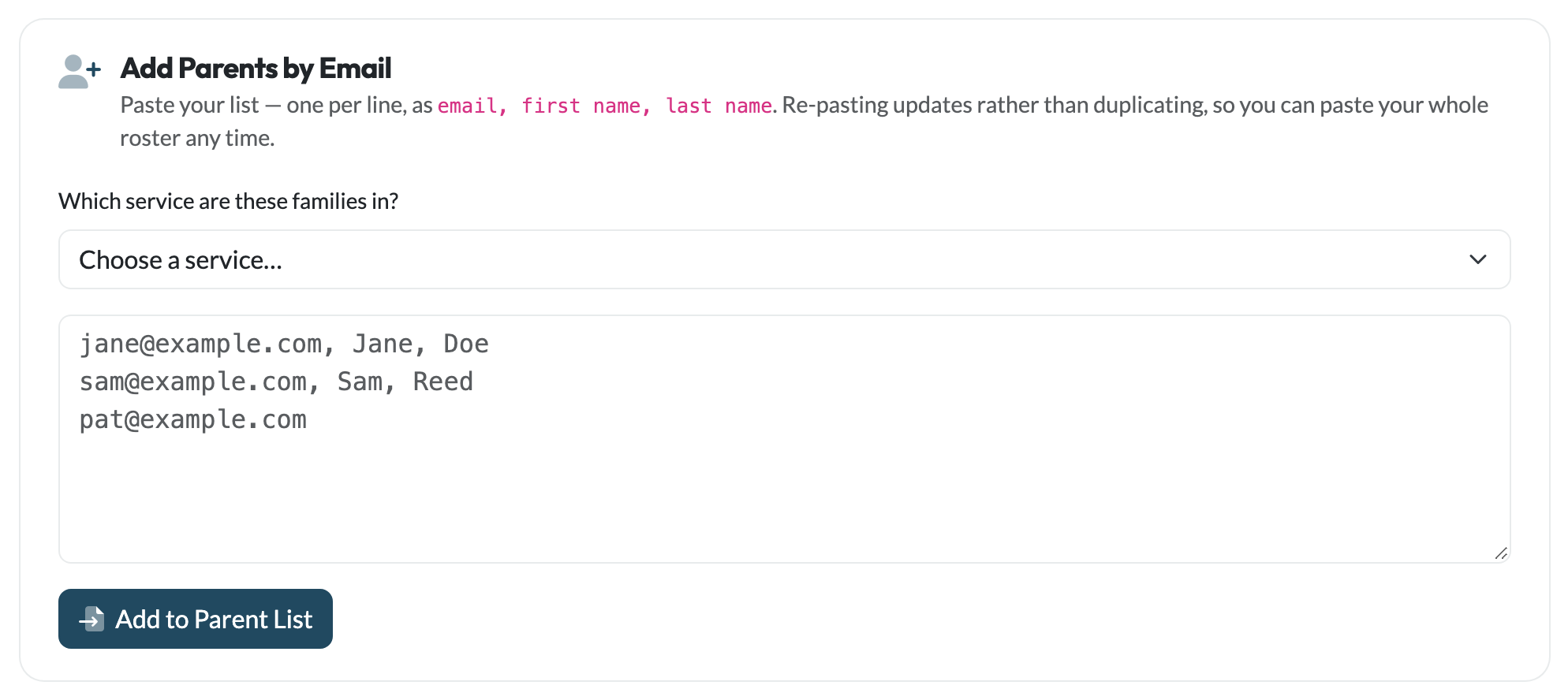
Pasting the same person twice updates them rather than adding a duplicate, so you can paste your whole roster again whenever it changes. Two things are worth knowing:
- A parent who already signed up for an account is recognised and left as they are.
- Pasting a parent who has turned email off puts them on your list, but doesn’t turn it back on. Only they can do that.
The Invite Link
Share the Parent Invite Link and parents can sign themselves up for a free account. They choose their own password and only ever see your lessons. Anyone who signs up appears on your parent list automatically. More about the Parent Portal.
 Parents from Planning Center
If your church keeps its families in a Planning Center People List, you may not need to paste anything. Add the list under Parents from Planning Center and both ways of emailing parents can use it: the weekly take-home email and Email Parents. The list is read fresh each time, so a family who joins is included and one who leaves stops hearing from you, without anyone re-importing anything. The families stay in Planning Center, where you already keep them; they aren’t copied onto your parent list.
Connect Planning Center
Not connected yet? The card offers a Connect button, which takes you to Planning Center in Ministry Settings.
Search your People Lists
Under Add a list, type part of the list’s name and click Find Lists. Each match shows how many people are on it. (parents) means the list is built to return the parents of the people it matches, which is ideal: a list that finds the children in your ministry and hands back their parents. Still building means Planning Center hasn’t finished refreshing it yet.
Say which service they come to, then click the list
If you have more than one service, choose the one the families on the list come to; the weekly email sends them that service’s lesson. Then click the list and confirm, and it appears in your lists straight away. A list whose families come to more than one service can be added once for each.
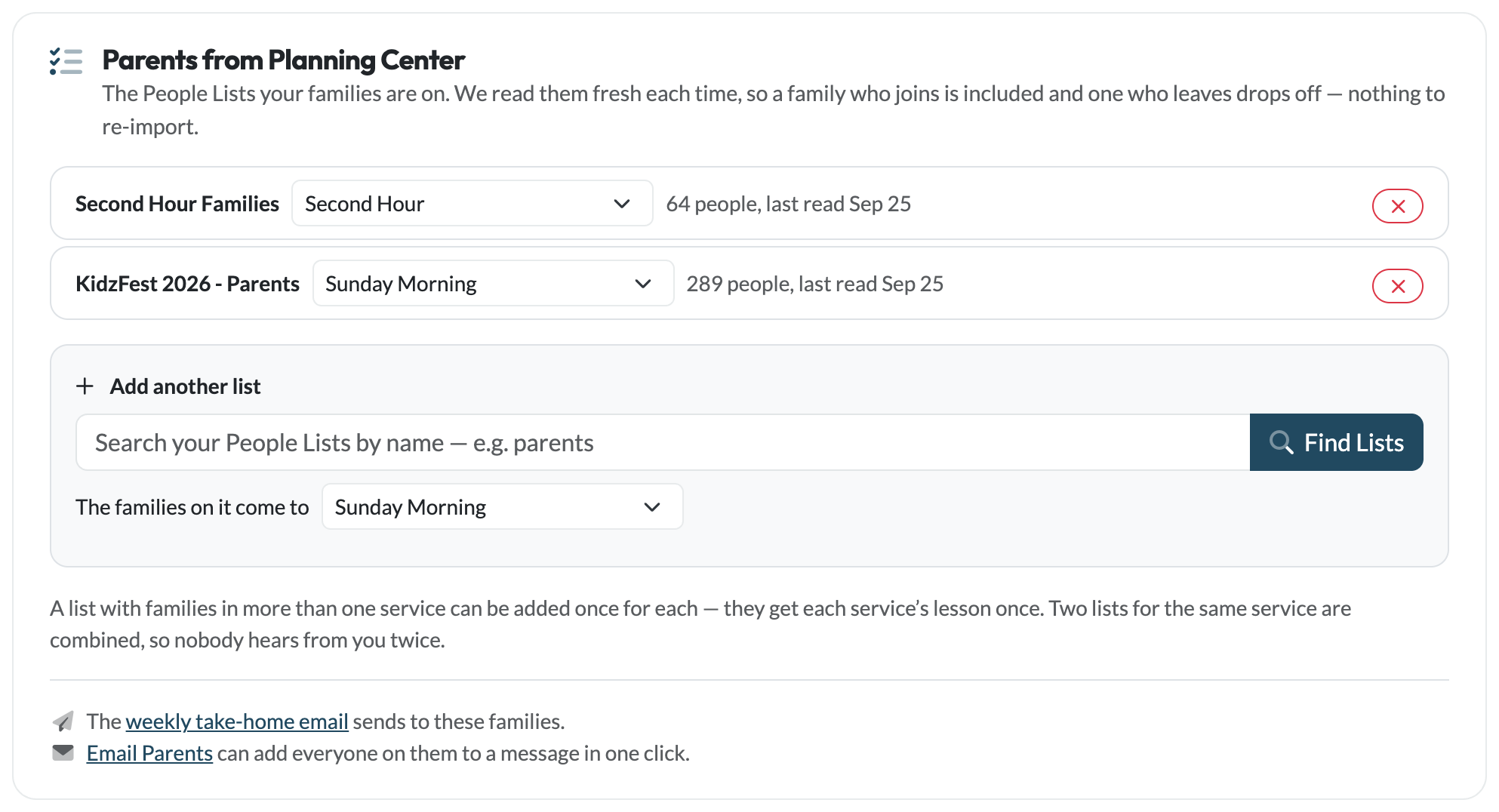
Each list shows how many people were on it and when it was last read. To change which service a list’s families come to, pick another in its dropdown; it saves as you choose. To stop using a list, click its . The foot of the card says what’s using your lists right now, so you can see at a glance whether the weekly email is sending to them.
What Parents Get
The Weekly Take-Home Email
Once a week, automatically: the lesson, the memory verse, a few questions for the dinner table, and a link to the printable take-home sheet. You choose the day and time, and whether it recaps the lesson you just taught or previews the one coming up. It’s off until you turn it on. Read the full guide.
Email Parents
A one-off message whenever you need one: a change of plan, a reminder, a thank-you. It goes to whoever you pick from your parent list and your Planning Center lists. Click Write an email in the Email Parents card. Read the full guide.
Shareable Parent Page Links
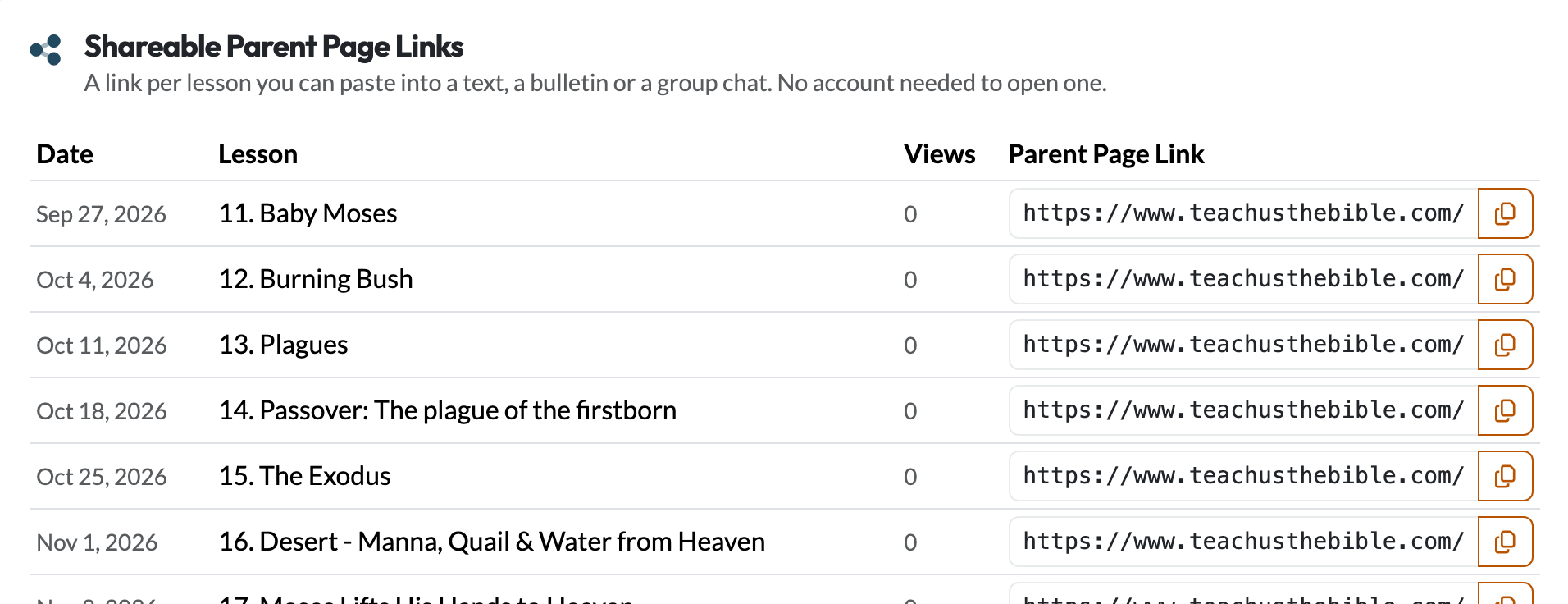
Every scheduled lesson has a parent page link you can copy and paste into a bulletin, a group text or a group chat. Anyone with the link can open that lesson’s parent page, no account needed, and download the printable take-home sheet from it. The Views column counts how often each lesson’s page has been opened.
Parents Are Always in Control
Every email a parent gets from you ends with a link to their email preferences. It’s their own link, and it works without logging in. From there they can switch off either kind of email, or everything from your ministry:
- Weekly take-home email, the automatic weekly send
- Notes from the ministry, anything you send from Email Parents
- Email from this ministry at all
An unsubscribe link asks the parent to confirm with a button before anything changes. Some email systems open every link in a message to check it for safety, and an unsubscribe that happened on opening would quietly drop those parents from your list.
Preferences belong to your ministry only. A parent who unsubscribes from you is still reachable by any other church that uses Teach Us the Bible. Addresses that bounce, or whose owners mark your email as spam, stop being emailed on their own.
A parent with a portal account can change the same settings from their Profile.
On this page
Supporting parents
- Parent Engagement
- Weekly Take-Home Email
- Email Parents
- Parent Portal
- Take-Home Sheet
Need help?
support@teachusthebible.com