A one-off message to the families you choose: a change of plan, a reminder, a thank-you. It reaches everyone on your parent list and, if you use Planning Center, the families on your People Lists too. Nobody needs an account to receive it.
When to Use It
- Announcing an event or a schedule change
- A reminder about supplies, a volunteer need, or a sign-up
- A thank-you at the end of a term
- Pointing families to a particular lesson’s parent page
For the lesson itself, every week, you don’t need to write anything: the Weekly Take-Home Email sends it automatically. For your teaching team, use Email Teachers.
Choosing Who Gets It
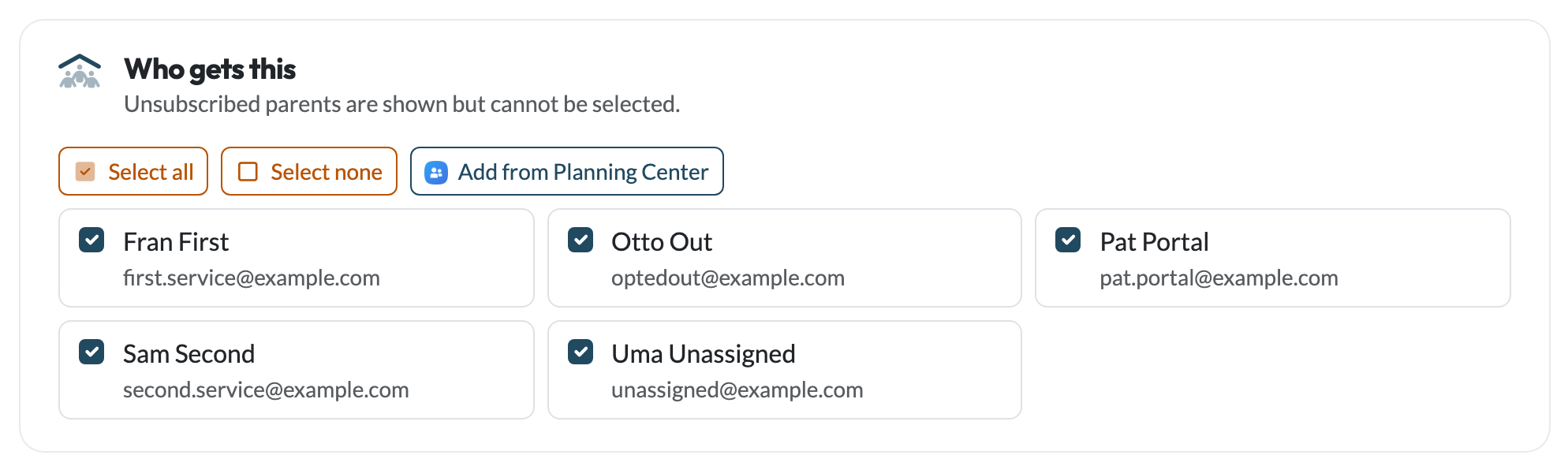
Everyone on your parent list is shown under Who gets this, and all are ticked to start with. Use Select all and Select none, or tick individual parents for a smaller group.
A parent who has turned off notes from your ministry (or all email from you) is shown greyed out and can’t be ticked. You can see who won’t get it before you send, rather than finding out afterwards.
 Adding Families from Planning Center
If your ministry is connected to Planning Center, click Add from Planning Center:
- If you’ve added lists under Parents from Planning Center, the families on all of them are added, read fresh from Planning Center. They’re the same lists the weekly take-home email uses, and the page says how many there are.
- If you haven’t, you can search your People Lists and pick one for just this message. It isn’t saved as one of your parent lists.
Someone who’s already on your parent list is ticked rather than shown twice, and a parent on two lists appears once. If a list can’t be read, you’re told which one.
Writing Your Message
Enter a Subject and write your Message. You can use bold, italics, bullet lists and links. Each parent gets their own copy; nobody sees who else it went to.
Including a Parent Page Link
To point families at a particular lesson, choose it under Include a parent page link. A button to that lesson’s parent page is added at the foot of your email, and parents don’t need to log in to open it. The list has your next eight weeks of lessons plus the one you taught most recently, so you can send a note ahead of a lesson or follow up after it. Leave it empty for a general announcement.
What’s Added for You
- Your ministry’s name and an unsubscribe link at the bottom of every email. The link is personal to each parent, so one family can’t unsubscribe another.
- A Log in to Your Parent Portal button, for parents who have a portal account. Everyone else gets the same email without it.
Replies come straight to you: your address is the email’s reply-to.
After You Send
The page confirms how many parents your message went to. If anyone was skipped, it says how many: they’ve unsubscribed, or their address has bounced before. Skipping is automatic; you don’t need to take anyone off your list.
A parent who unsubscribes from one of these emails stops getting notes from the ministry. Their weekly take-home email is a separate choice and carries on unless they turn that off too. On your parent list they’re marked No ministry notes.
On this page
Supporting parents
- Parent Engagement
- Weekly Take-Home Email
- Email Parents
- Parent Portal
- Take-Home Sheet
Need help?
support@teachusthebible.com