This is the payoff. Ahead of each service, everyone scheduled to serve automatically receives their lesson — with the parts you choose — so they walk in prepared. Nobody has to remember to send anything, and it works whether you schedule your teachers in Teach Us the Bible or in Planning Center.
How It Works
You decide two things once: what to include in the email and how far ahead to send it. From then on, the platform does the rest every week:
- Once each service date comes inside your chosen lead time, it gathers everyone scheduled to serve that date.
- It emails each person the lesson for their date, assembled from the parts you picked — lesson prep, the lesson itself, reinforcement activities, and videos.
- Anyone added later — like a sub who claims a spot the day before — gets the email as soon as they're on the schedule.
- People who declined aren't emailed, and no one is emailed the same lesson twice.
Turning It On
Open Ministry Settings and find the Automatic Lesson Emails card. Flip "Send the lesson automatically" on, then set your preferences — changes save as you make them.
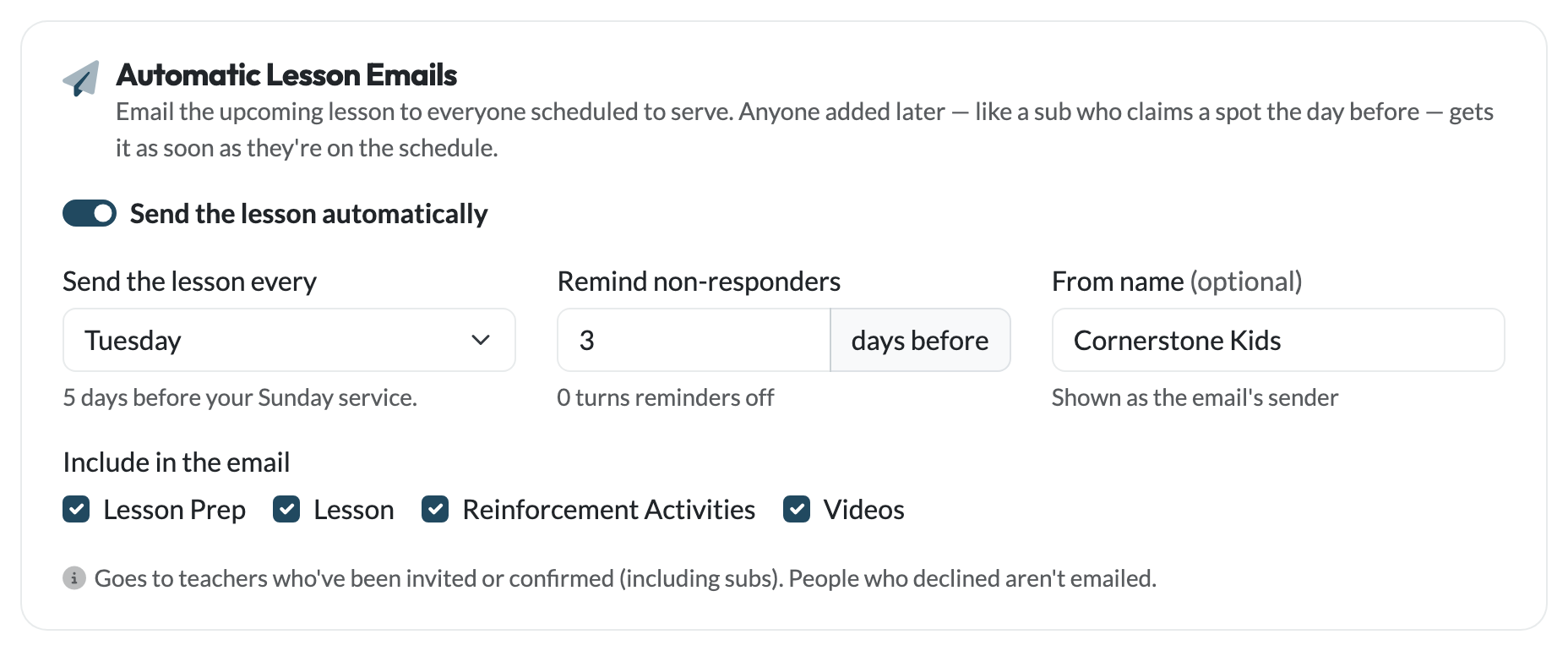
- Send the lesson <N> days ahead — how much lead time your teachers get, from the day of the lesson itself up to three weeks out. The card names the day that works out to, so you can see that 5 days ahead of a Sunday service means Tuesday. If your services meet on different days, each gets its lesson that many days before its own date.
- Remind non-responders — optionally nudge anyone who hasn't confirmed yet, a set number of days before they serve. Set it to 0 to turn reminders off.
- From name — the sender name your teachers see (e.g. "Riverside Kids"). Optional.
- Include in the email — choose which parts of the lesson to send: Lesson Prep, the Lesson, Reinforcement Activities, and Videos.
Who Gets the Email
The lesson goes to whoever is scheduled to serve — and there are two ways to tell the platform who that is. You can use either, or both together.
Teachers you schedule in Teach Us the Bible
If you use built-in team scheduling, the email automatically goes to everyone invited or confirmed for each date, including anyone who picked up a spot as a sub. Teachers who declined are left out. There's nothing extra to set up — once you're scheduling teams, the lesson email follows.
People you schedule in Planning Center
Already schedule your volunteers in Planning Center? You don't have to move them. Once you've connected Planning Center, a Planning Center Recipients section appears in the same card. Add the teams whose people should get the lesson, and the platform emails everyone scheduled on those teams (accepted or pending — not declined) for the plan that matches each lesson date.
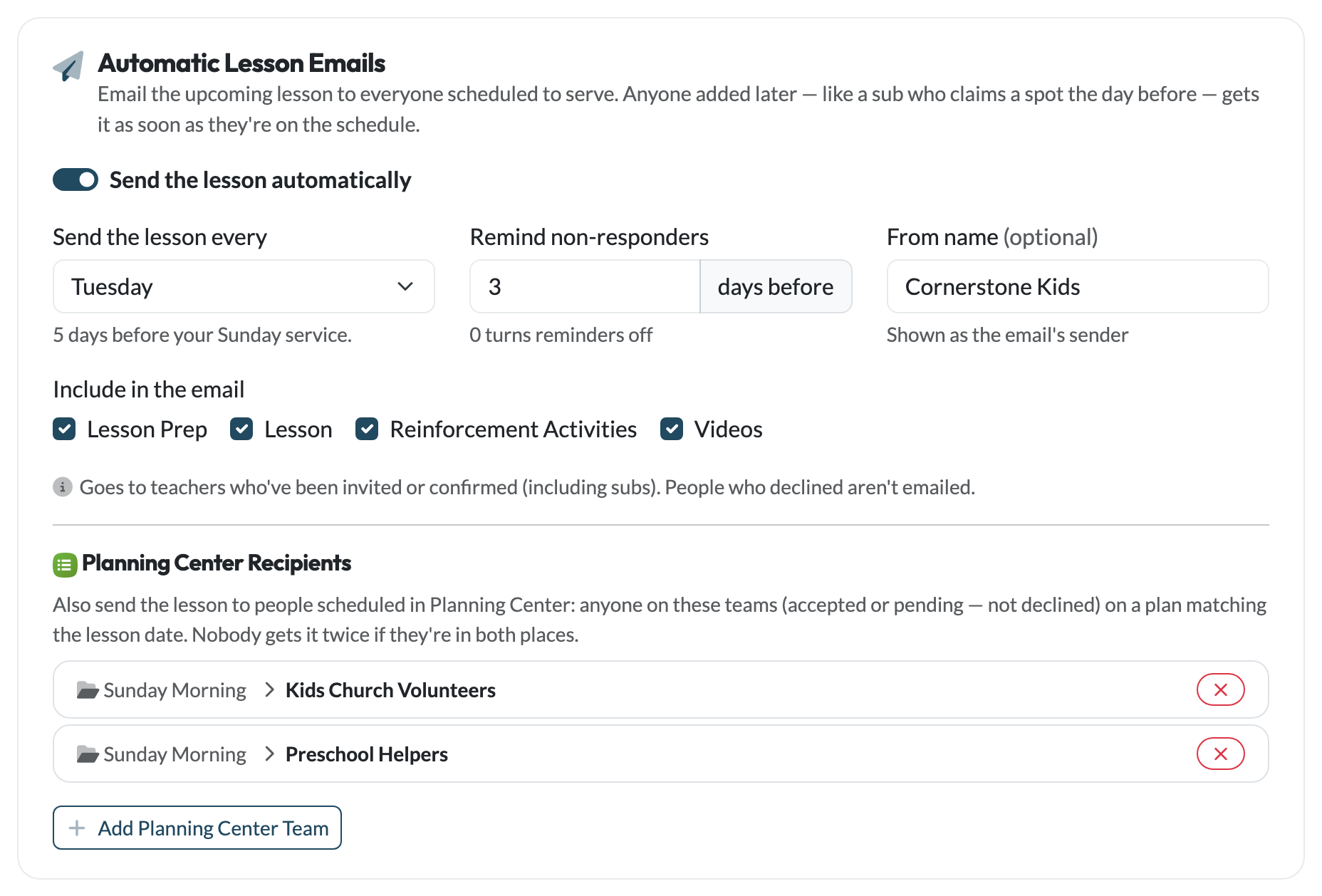
When Planning Center is connected, add the teams whose volunteers should receive the lesson. If you run multiple services, you can point each team at the service whose lessons it should get.
Using both at once
You can mix the two — some teachers scheduled here, some in Planning Center. If the same person ends up in both places for the same date, they still only get one email. No duplicates, ever.
Confirmation Reminders
If you turn on "Remind non-responders," anyone still sitting on an unanswered invitation gets a friendly nudge that many days before they serve — with the same one-click I can serve / Can't make it buttons. Reminders apply to teachers you schedule in Teach Us the Bible; Planning Center runs its own confirmation and notification flow, so we don't double up on your PC volunteers.
Good to Know
- Emails are sent from a lesson's scheduled date, so if you re-plan a week, the right lesson always follows.
- If an address has bounced or reported spam, we quietly skip it to protect your sending reputation.
- Teachers get the same beautifully formatted lesson your team sees in the app — ready to open on a phone Sunday morning.